

type field. It cannot be changed after the template is created.
Offer
The offer type is designed for vouchers, coupons, and discount passes. It renders as a Store Card in Apple Wallet and an Offer in Google Wallet.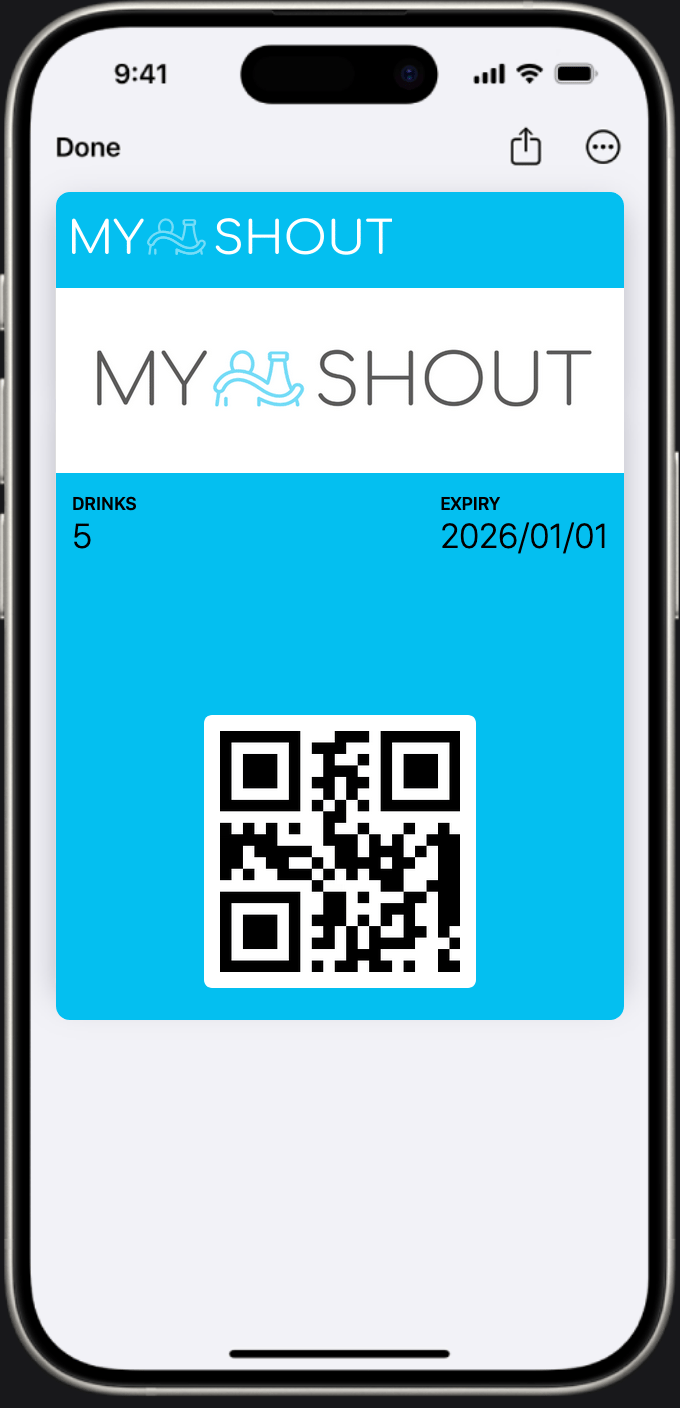
Apple Wallet - Store Card
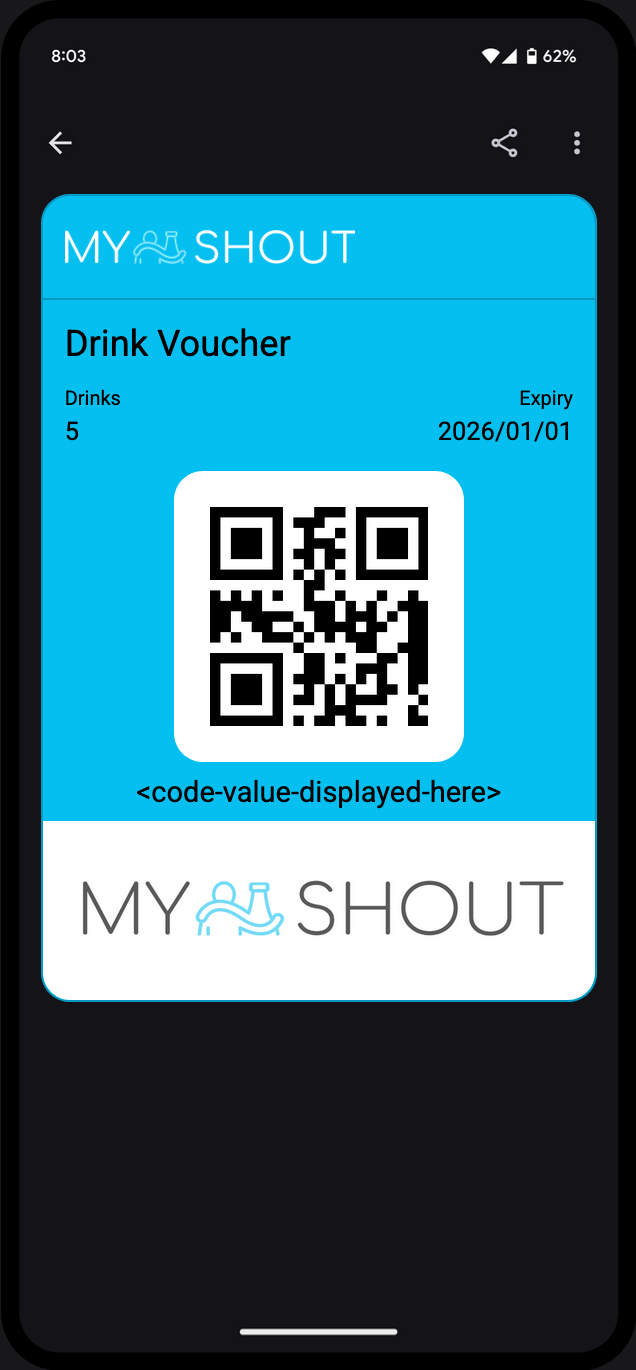
Google Wallet - Offer
- Discount vouchers (e.g. “20% off your next purchase”)
- Single or multi-use digital coupons
- Gift cards and prepaid passes
- Promotional giveaways
- Supports an optional expiry date - when set, Apple Wallet displays a countdown and Google Wallet shows the expiry prominently
- Up to 4 front fields for custom content (e.g. discount amount, promo code, eligible items)
- Back fields for terms and conditions, website links, or any supporting text
- Barcode/QR code for scanning at point of sale
Event
The event type is built for ticketed events. It renders as an Event Ticket on both Apple Wallet and Google Wallet, and automatically populates date, time, and venue fields from the template.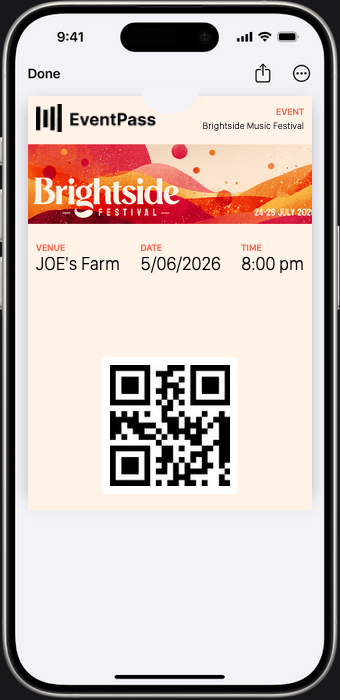
Apple Wallet - Event Ticket
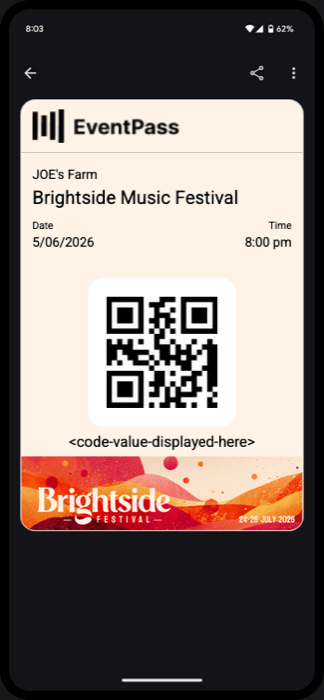
Google Wallet - Event Ticket
- Concerts, sports fixtures, and theatre shows
- Conferences and workshops
- Any one-time or recurring event with a fixed start time
startDate(required) - automatically displayed as separate date and time fields on the pass face; no manual field neededlocation(optional) - provide an address with latitude/longitude to enable:- Lock screen notification when the user arrives near the venue
- Venue name and address shown on the pass
relevantDates- Apple Wallet surfaces the pass on the lock screen around the event start time- Header field automatically set to the event title
- Supports up to 4 additional front fields for seat, row, section, gate, or other event-specific details
Membership
The membership type is designed for loyalty cards and ongoing memberships. It renders as a Store Card in Apple Wallet and a Generic pass in Google Wallet.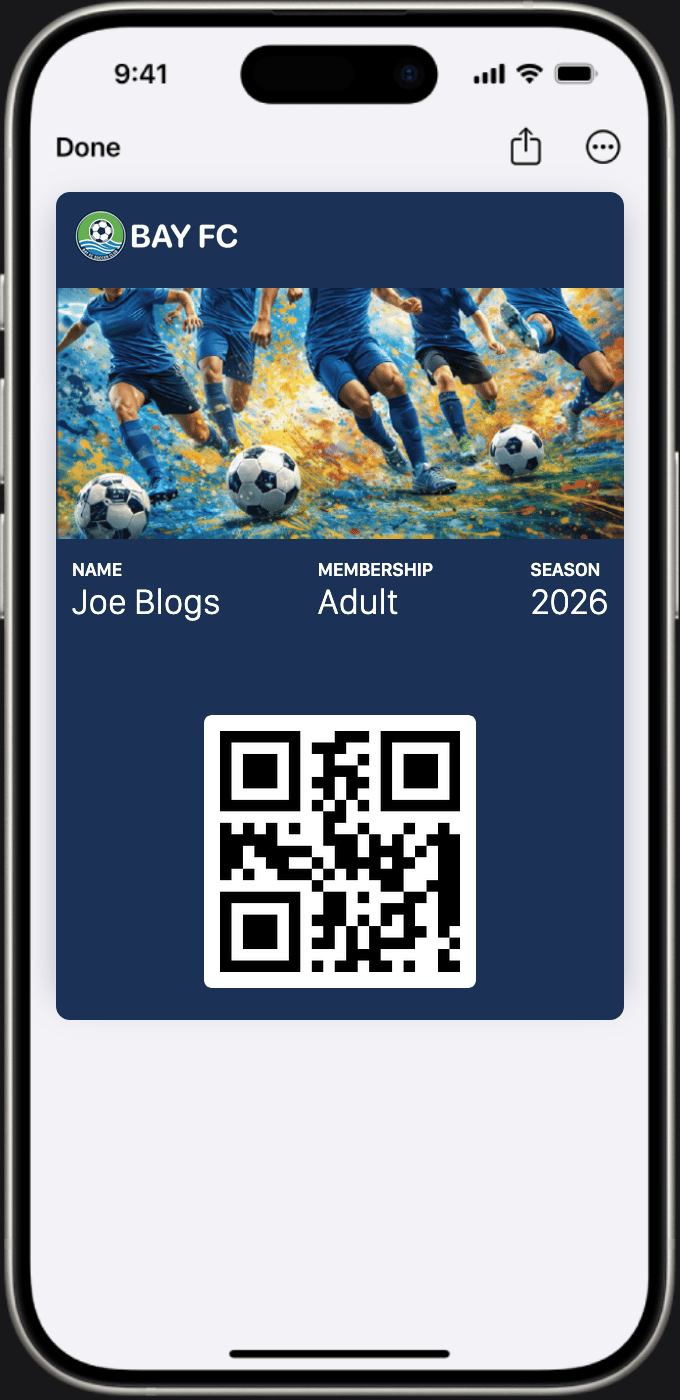
Apple Wallet - Store Card
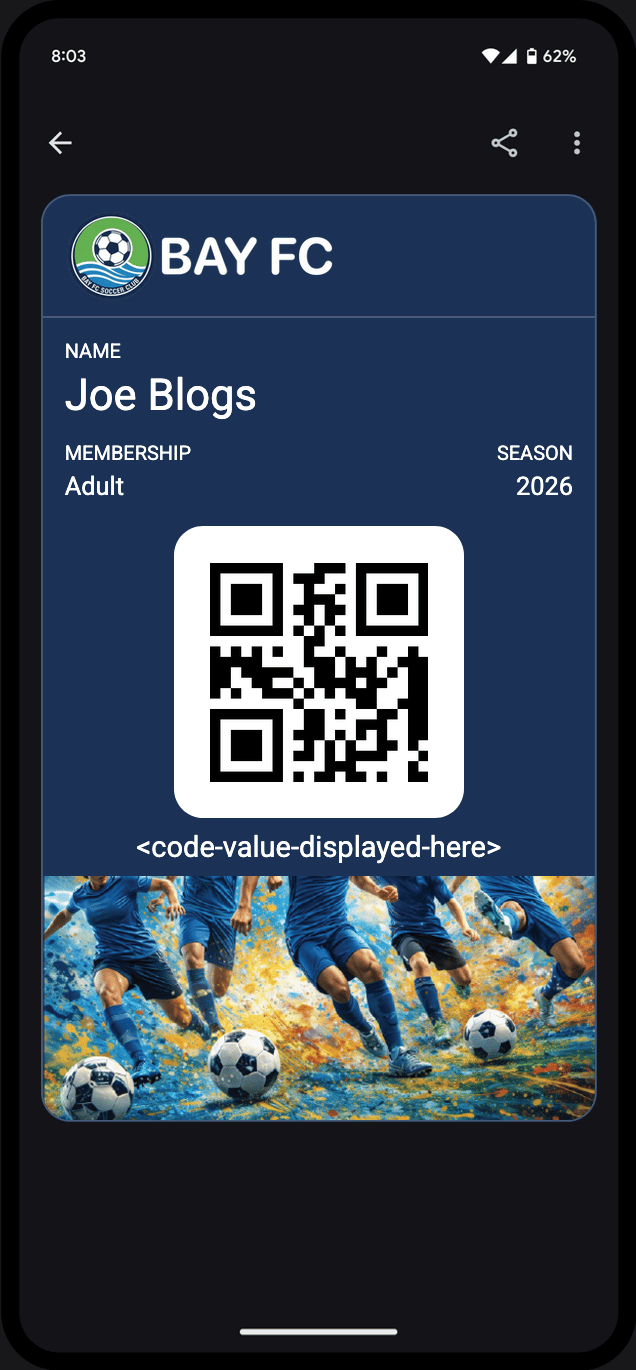
Google Wallet - Generic
- Club and organisation memberships
- Loyalty and points cards
- Staff or access passes that need a primary identifier
primaryLabel- defines the label displayed next to the member’s primary value (e.g. “Member”, “Points”, “Member ID”)primaryValueon each issued pass - the individual value shown for that member (e.g. their name, member number, or points balance)- Passes can be updated in real time - push a new
primaryValuewhen a member’s points balance changes, without reissuing - Up to 4 additional front fields for tier, expiry, or other membership details
- Back fields suitable for membership terms, contact info, or redemption instructions
primaryValue to the member’s current value:
Generic
The generic type is a flexible pass that doesn’t carry any built-in field assumptions. It renders as a Generic pass on both Apple Wallet and Google Wallet.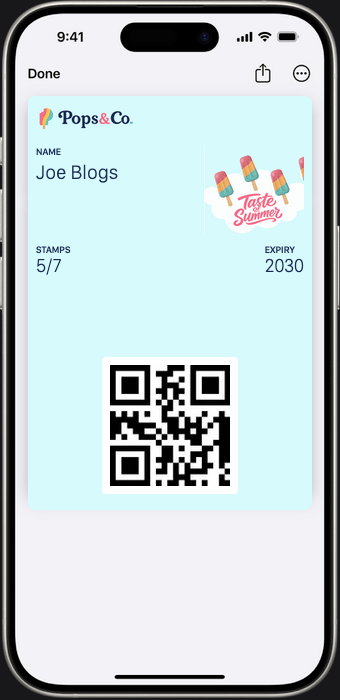
Apple Wallet - Generic
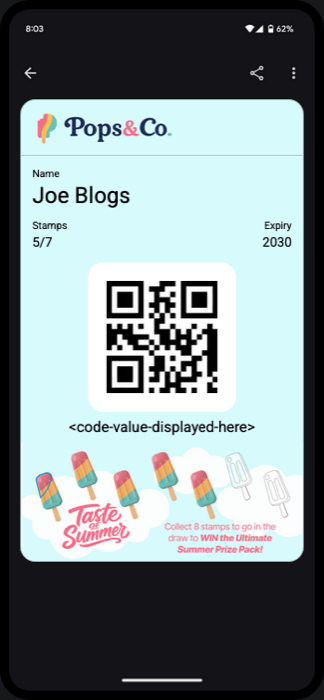
Google Wallet - Generic
- ID or credential passes
- Internal access, accreditation, or verification passes
- Any pass that doesn’t map cleanly to an offer, event, or membership
primaryLabel(required) - label for the primary value displayed prominently on the pass faceprimaryValueon each issued pass - the individual value shown for that pass holderthumbnail(required, displayed in Apple Wallet only) - a square image (90 × 90 px at 1×) shown alongside the primary field instead of the banner image; useful for a profile photo or product image- Up to 4 front fields for any custom content
- Back fields for supplementary information
Common fields
All pass types share the following base fields:
When you issue a pass, the response includes
appleUrl, googleUrl, and webUrl so you can distribute the same pass to Apple Wallet, Google Wallet, or Passform’s browser-based web viewer.
See the image dimensions guide for recommended sizes for icon, logo, banner, and thumbnail, the barcode types guide for choosing a barcodeFormat and its code length limits, and the notifications guide for setting up locations.